User Guide

How to Use Voucher Bridge

Follow this simple picture guide to find vouchers, sell unused vouchers, manage bids, and understand the order page before payment.

This guide explains the process up to the payment step. It does not ask you to complete a real payment.

Visual Guide
Follow the Main Screens

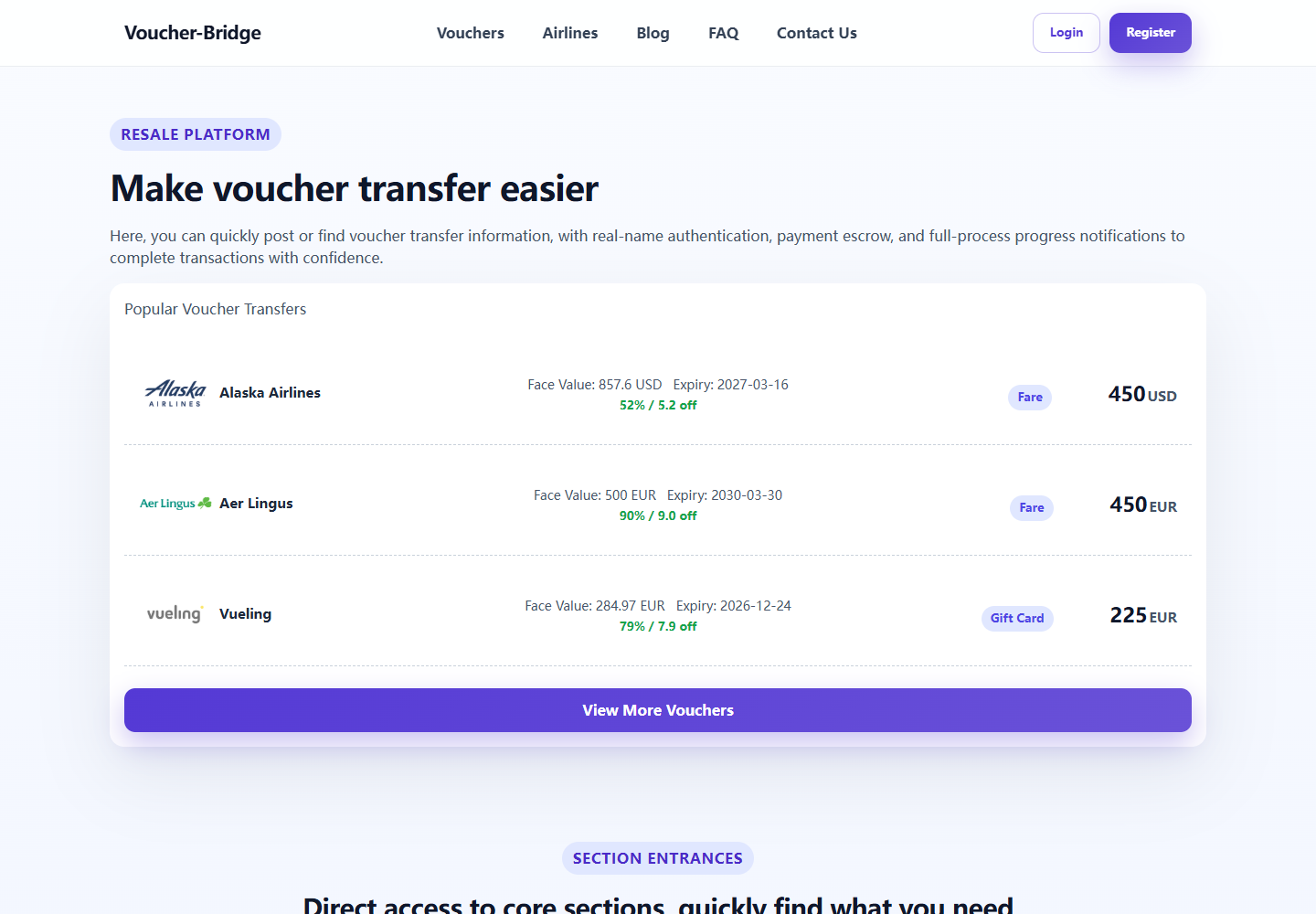
Voucher Bridge homepage
HomeStart from the homepage to browse vouchers, read help content, or find account actions.
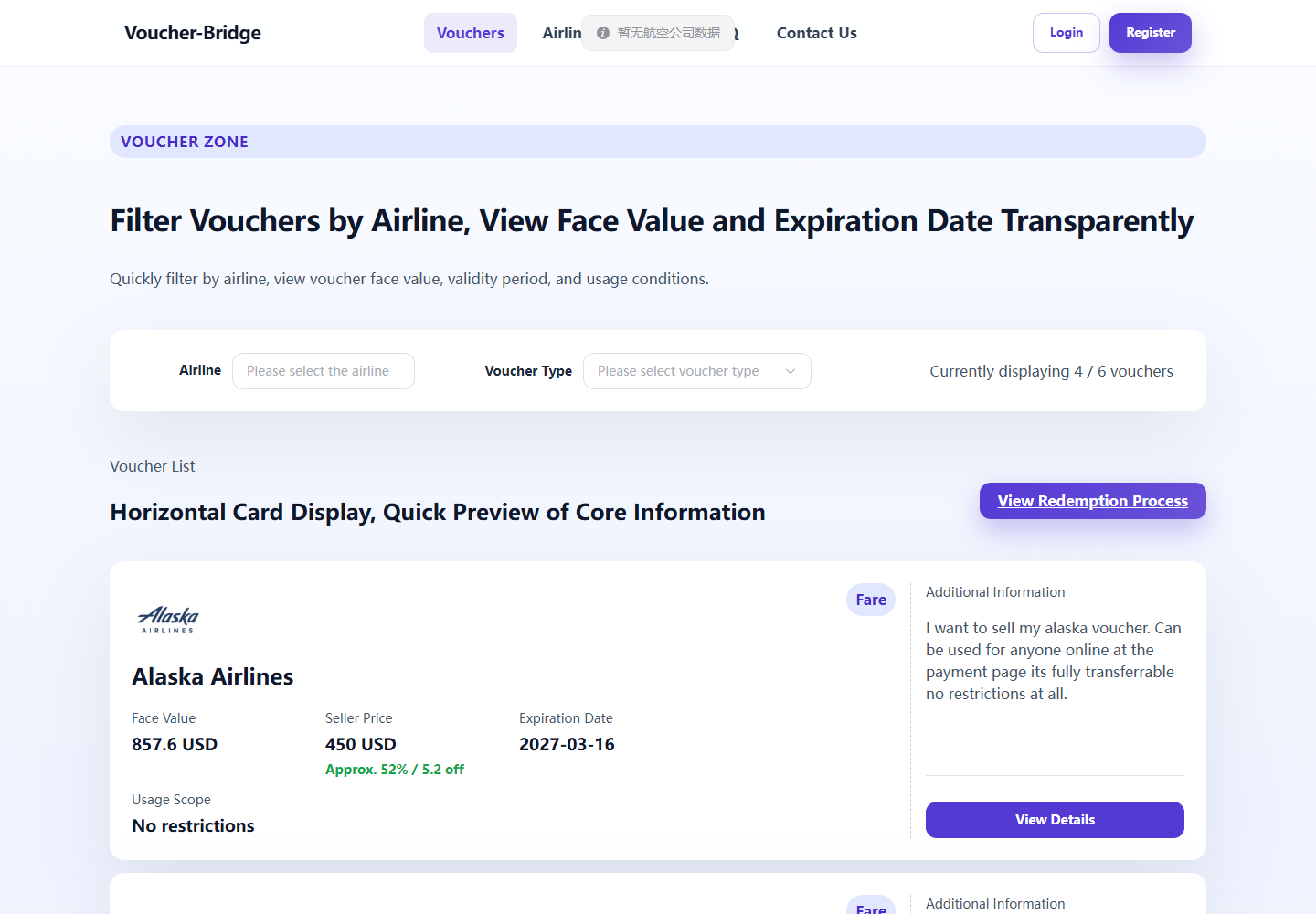
Voucher Bridge voucher list
Voucher ListFilter and compare available voucher listings before opening details.
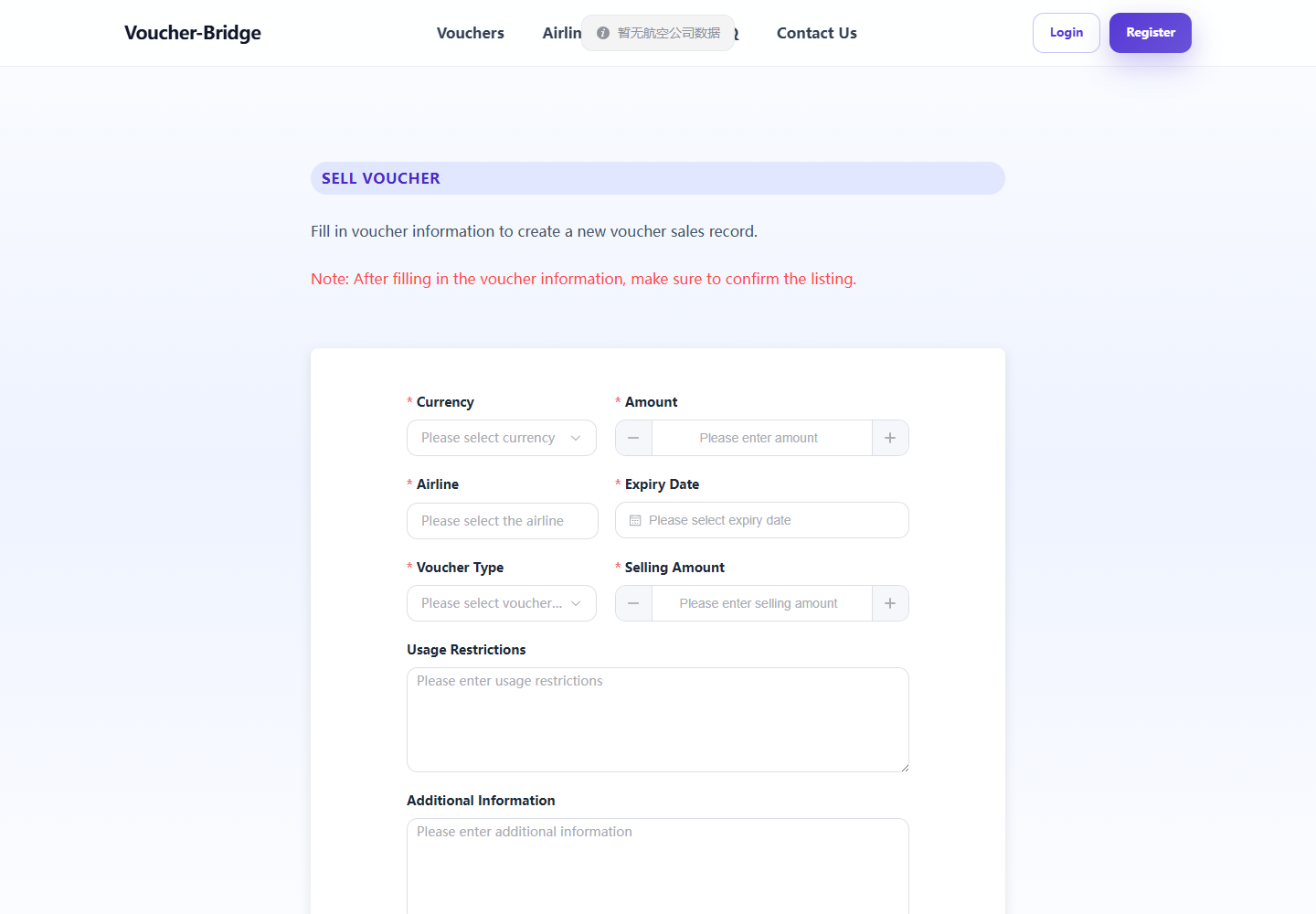
Voucher Bridge sell voucher page
Sell VoucherSubmit your unused voucher information and review estimated fees.
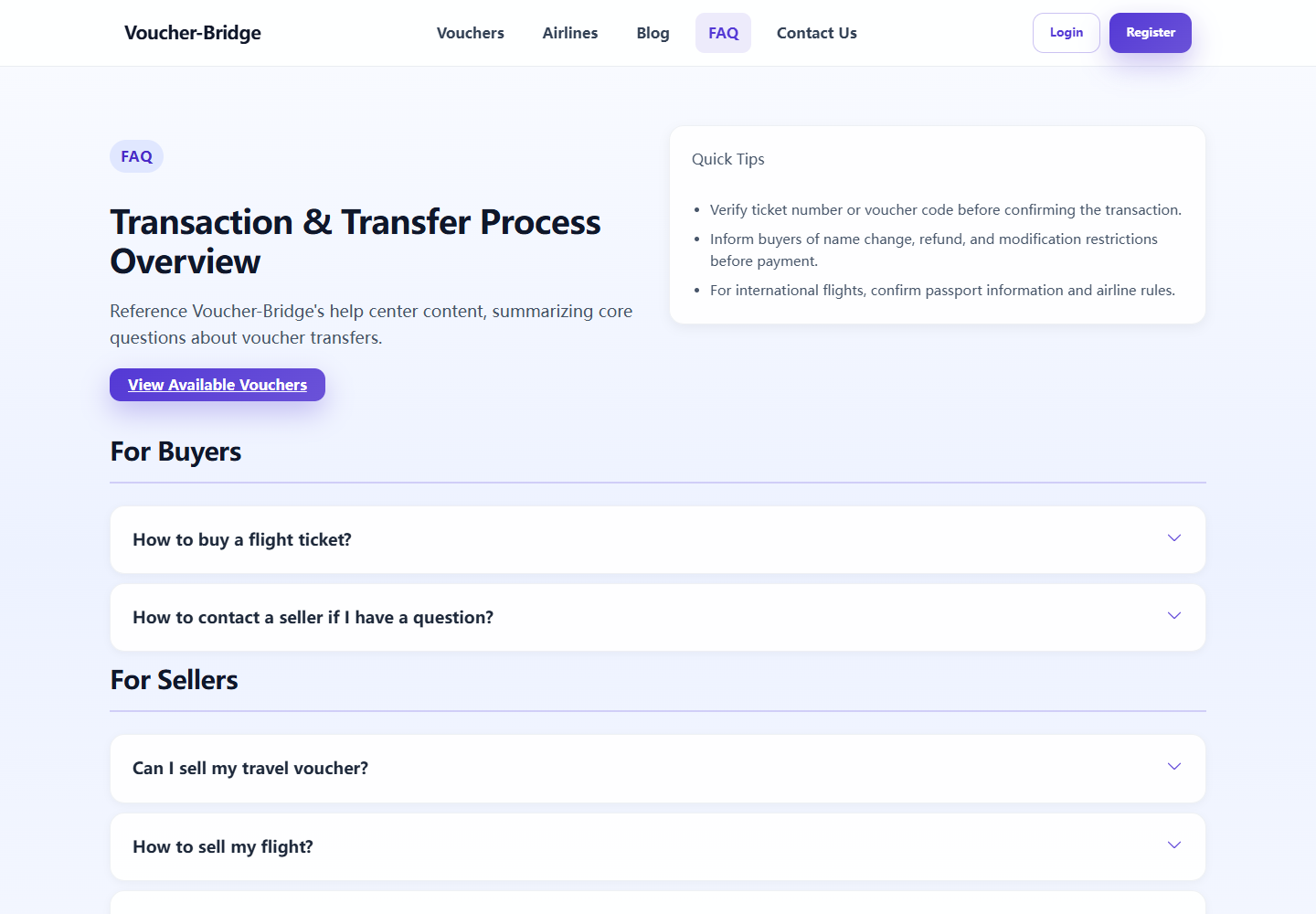
Voucher Bridge FAQ page
FAQRead common buyer and seller questions before making a transaction.
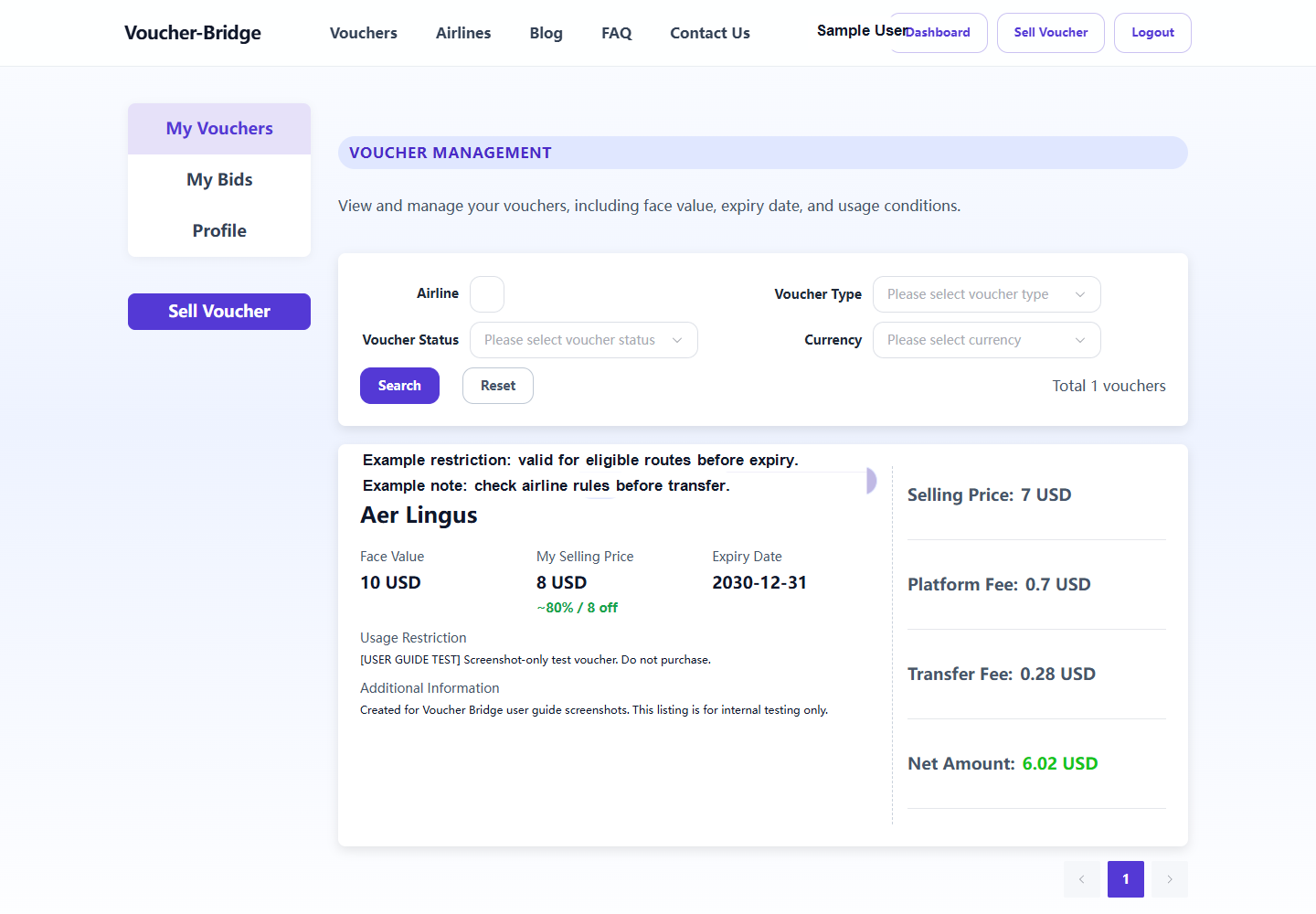
Voucher Bridge My Vouchers page
My VouchersCheck your listed vouchers and see seller-side order status.
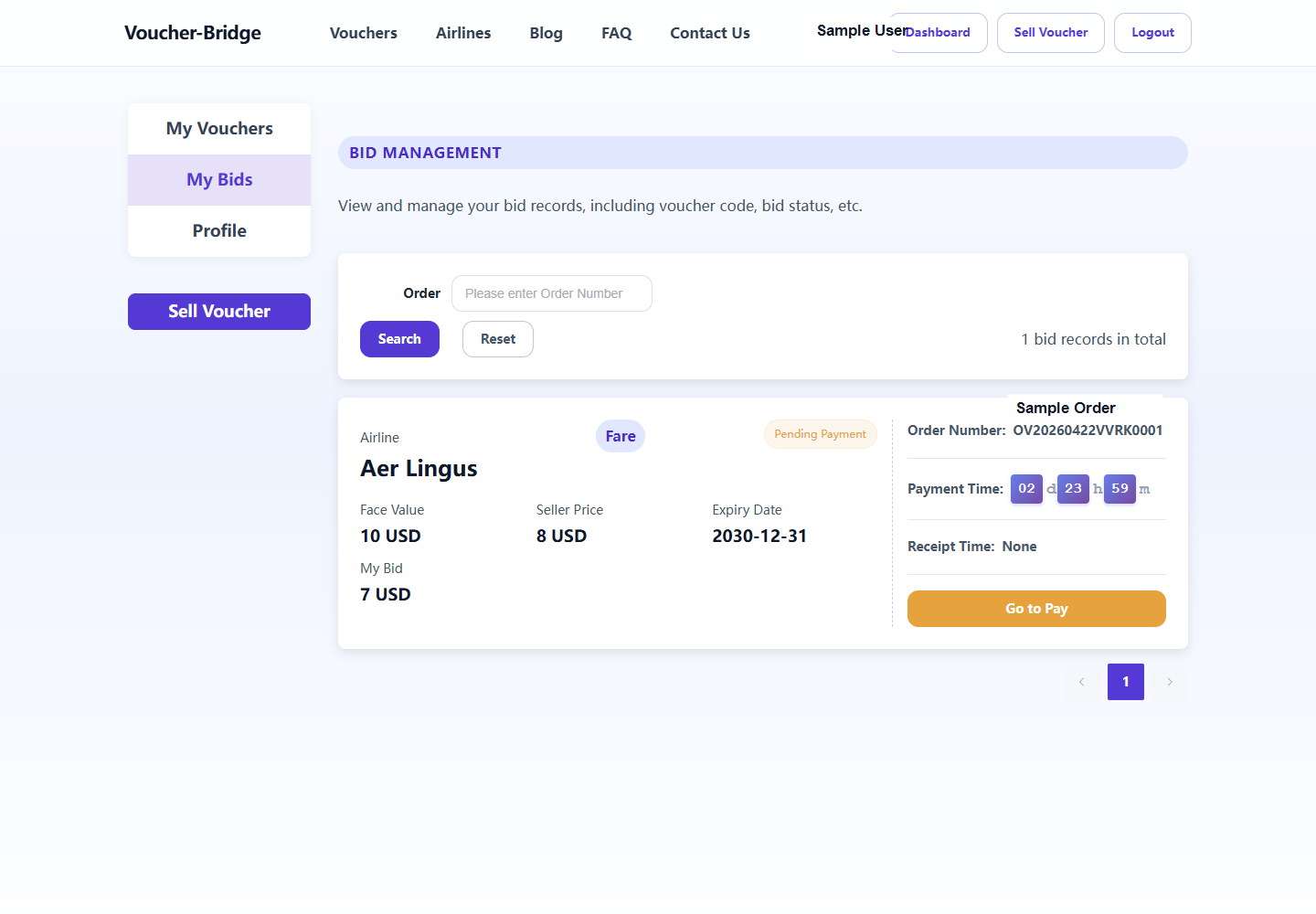
Voucher Bridge My Bids page
My BidsTrack buyer-side bids and open orders before payment.
Voucher Bridge order details before payment
Order DetailsReview the order and stop before the final payment action.

Quick Start

What You Can Do on Voucher Bridge

1

Find travel vouchers

Browse available airline and travel vouchers, compare face value, seller price, expiry date, and usage restrictions.

2

Sell unused vouchers

List an unused voucher by entering its airline, value, expiry date, voucher type, and transfer conditions.

3

Track bids and orders

Log in to manage your vouchers, review bid records, and open an order when it is ready for payment.

For Buyers

How to Buy or Bid for a Voucher

Voucher Bridge voucher list page
Use the voucher list to compare airline, face value, seller price, expiry date, and usage restrictions before submitting a bid.
  1. Open the voucher list. Go to Vouchers and browse available voucher listings.
  2. Filter by airline or voucher type. Use the filters to narrow the list by airline and voucher type.
  3. Review the voucher details. Check face value, seller price, expiry date, usage scope, and any additional information before making a decision.
  4. Submit a bid. Click View Details, log in if required, enter your bid amount, and submit your offer.
  5. Track your bid. Open Dashboard and choose My Bids to view bid status, order number, payment countdown, or order details.
  6. Stop before payment. When your bid becomes an order, click Go to Pay or Order Details to review the order. Do not click the final payment button until you are ready.

For Sellers

How to Sell an Unused Voucher

Voucher Bridge sell voucher form
Sellers use the Sell Voucher form to enter voucher value, airline, expiry date, voucher type, selling amount, restrictions, and notes.
  1. Create an account or log in. Sellers need an account so the platform can connect the listing, bids, and order updates to the correct user.
  2. Open Sell Voucher. Go to Sell Voucher from your account area.
  3. Enter voucher information. Fill in currency, face value, airline, expiry date, voucher type, selling amount, usage restrictions, and any additional notes.
  4. Check fees and net amount. When you enter a selling amount, the page shows estimated transfer fee, platform fee, and net amount.
  5. Submit and manage the listing. After submission, open My Vouchers to edit, delete, or manage voucher status when available.
  6. Watch the order status. When a buyer's bid is accepted, your voucher can show a status such as Buyer is making payment.

Account Center

Managing Your Account

My Vouchers

View your listed vouchers, filter by airline, voucher type, status, or currency, and manage voucher actions such as edit, delete, or delivery information when the order reaches that stage.

My Bids

View your bid records, search by order number, check payment time, open order details, and confirm receipt when the voucher delivery is ready.

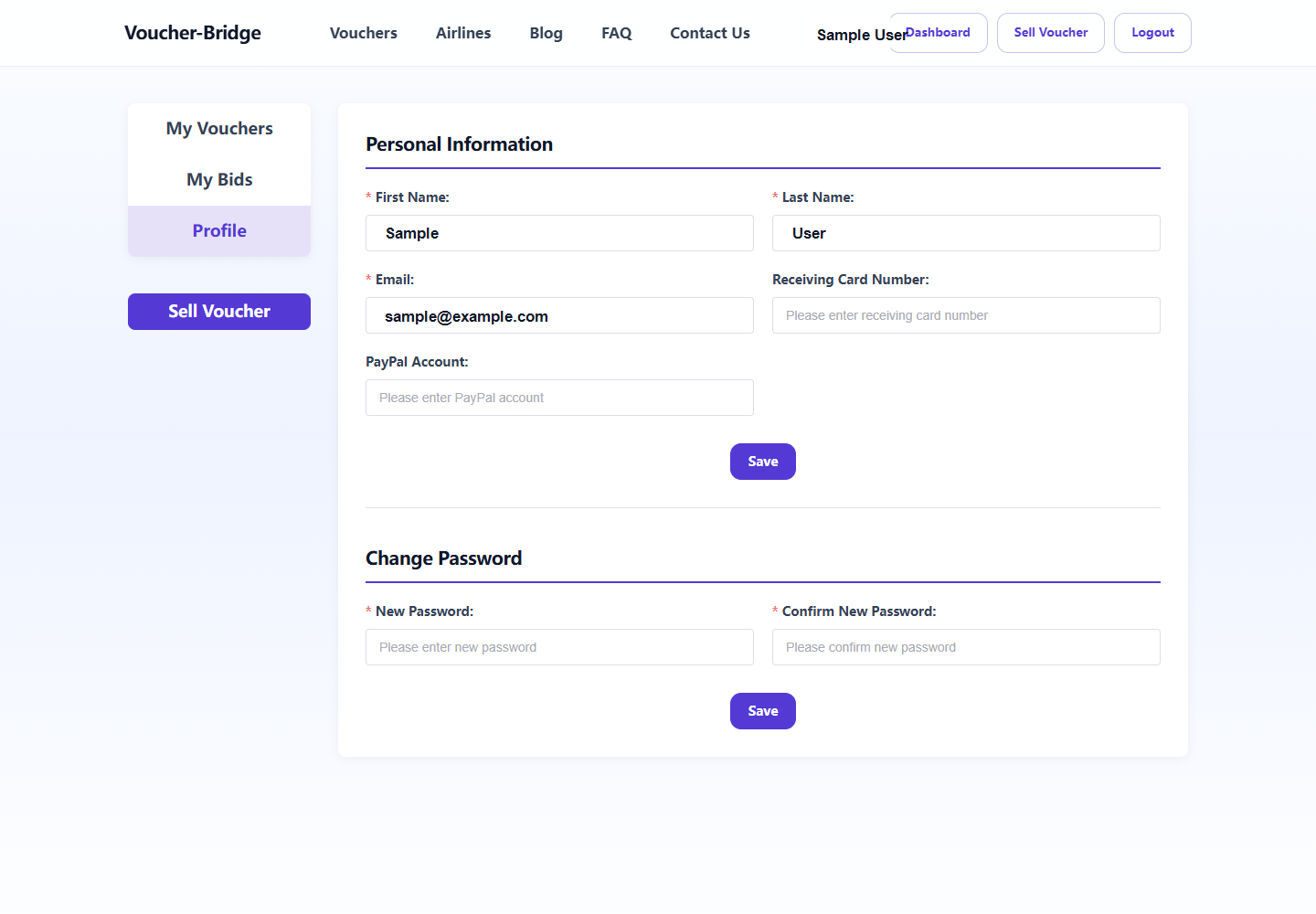
Profile

Update your personal information, receiving card number, PayPal account, and password from the profile page.

Orders & Payment

Review the Order Before Payment

Voucher Bridge order details page before payment
The order page shows progress, order status, payment amount, voucher information, and payment action. Stop here if you only want to review the order before paying.
1

Bid Accepted

When a seller accepts a bid, the system creates an order for the buyer.

2

Open My Bids

The buyer can find the order in My Bids and see the payment countdown.

3

Review Order Details

Open the order page to check voucher value, price, expiry date, restrictions, and order status.

4

Stop Before Payment

Do not click the final payment button unless you are ready to pay. This guide ends before real payment.

Help & Support
Before You Buy or Sell

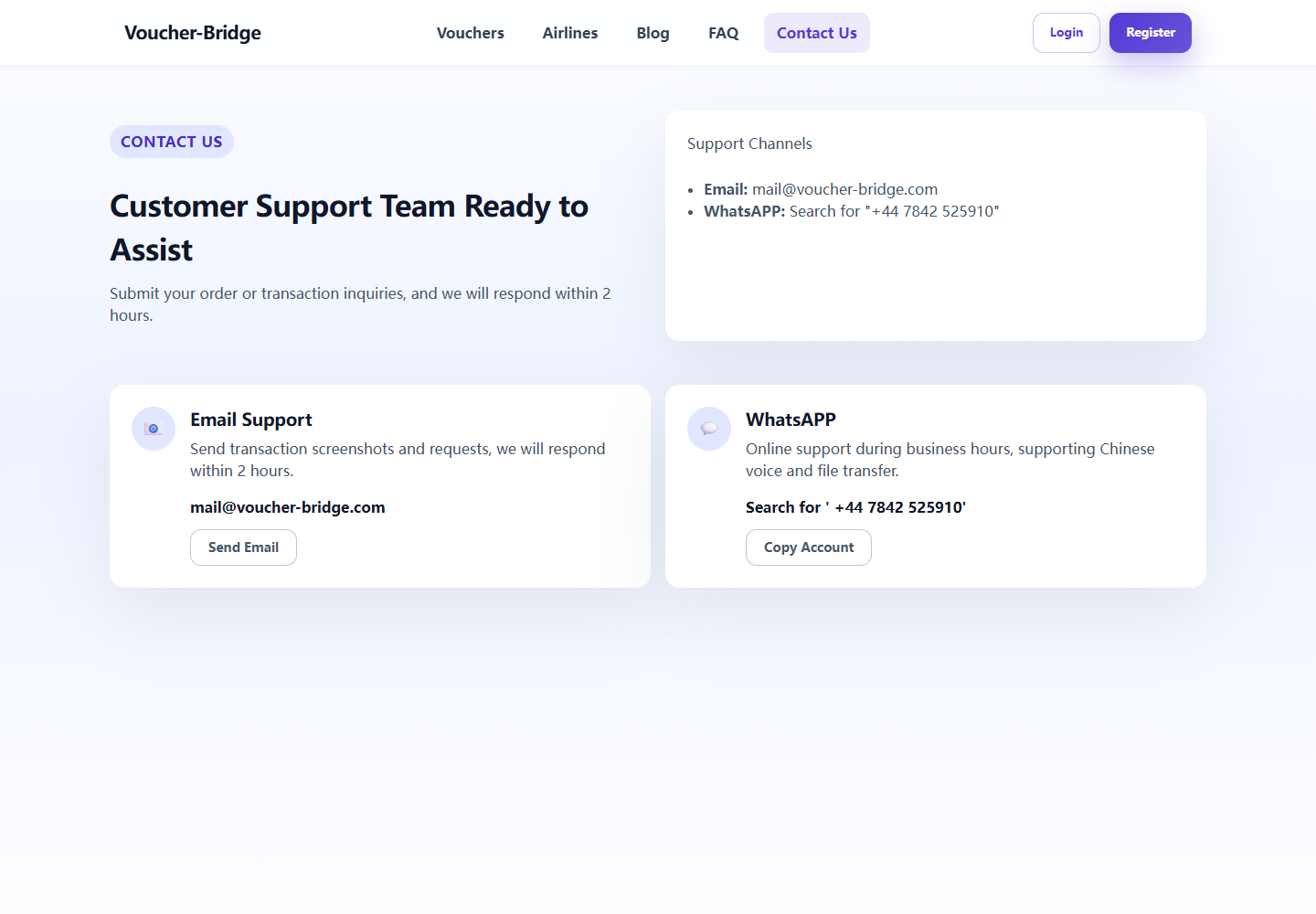
Voucher Bridge contact support page
Use Contact Us when you need help with a listing, bid, order, payment, or voucher transfer question.

Check voucher terms

Always review airline rules, expiry date, currency, transfer restrictions, route limits, and whether the voucher can be used by another passenger.

Read airline information

Visit Airlines to find airline transfer rules, official website links, and policy information.

Contact support

If you have questions about buying, selling, payment, or voucher transfer, visit Contact Us for support channels.